How to extract SVGs from a website
Right-clicking a logo and choosing Save Image As should be enough. Websites have other ideas. The artwork may be embedded in the page, tucked inside a symbol sprite, or loaded through CSS instead of existing as an obvious file. SVG Studio can inspect a public webpage, gather the SVG candidates it finds, and put them in one contact sheet for you.
Extract website SVGs01
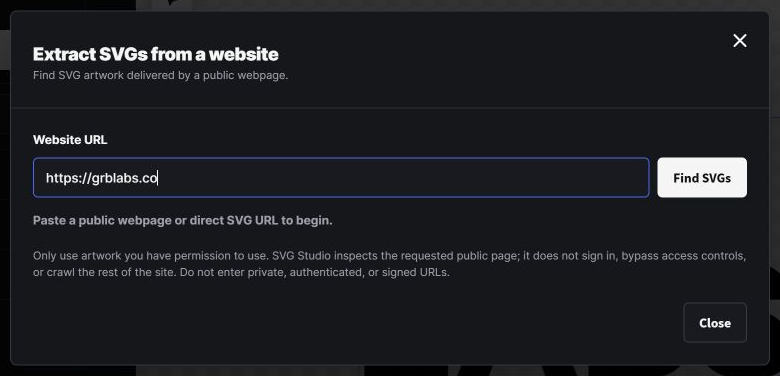
Scan the public webpage
Open SVG Studio, choose Open, then Extract from website, and paste the exact public page URL. GRB Labs receives the URL and temporarily retrieves the public page so it can look for the artwork delivered with it. Private, authenticated, and signed URLs are not invited to this particular party.
- Open SVG Studio.
- Choose Open, then Extract from website.
- Paste the full public webpage URL.
- Select Find SVGs to run the scan.
- Review the SVG contact sheet.
 — open full-size screenshot in a new tab
02
Choose the actual artwork
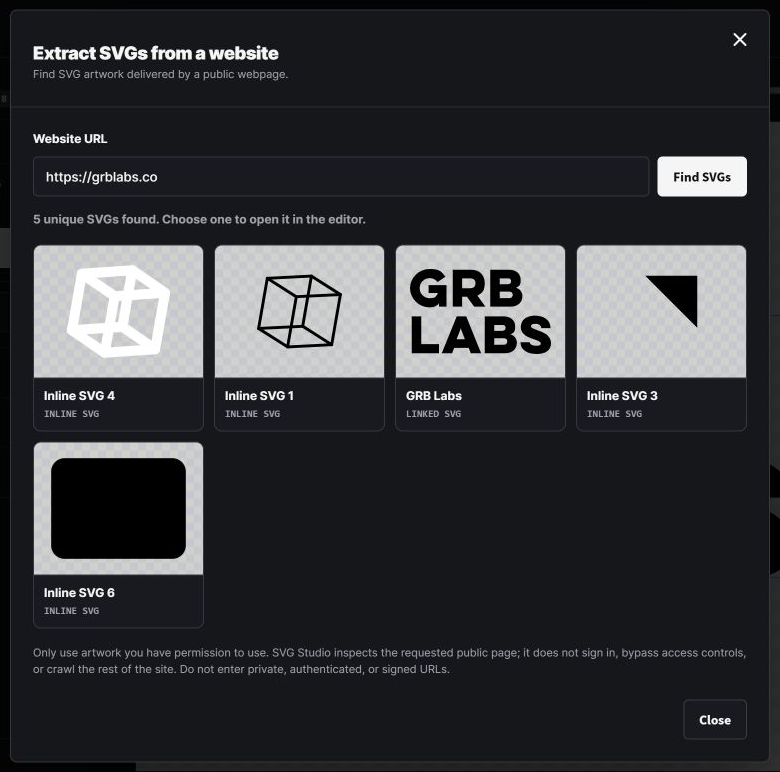
The results collect inline SVG markup and linked SVG files into a visual contact sheet. Logos and brand artwork are prioritized ahead of the seventeen nearly identical chevrons a modern website apparently requires. Preview the candidates and choose the one you want to open.
 — open full-size screenshot in a new tab
03
Open, clean, and export it
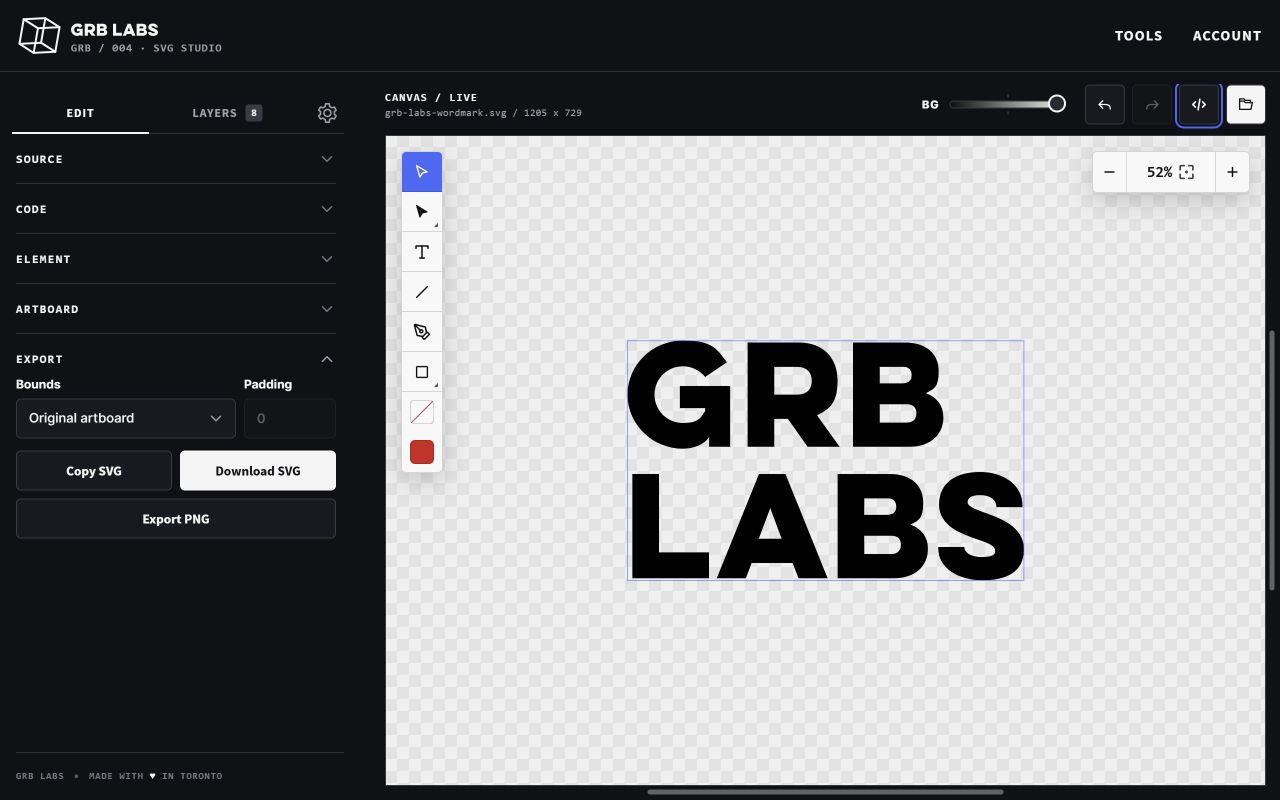
Choose a candidate to open it on the SVG Studio canvas. Expand Code to inspect its source, or use the code-view button above the canvas for a larger editor. Relevant page styles are carried into supported inline SVGs so a logo does not arrive mysteriously colourless. From there you can inspect the structure, change colours, and clean the file. When it is ready, expand Export and choose Download SVG or Export PNG.
 — open full-size screenshot in a new tab
04
From website to workable SVG
The extractor handles the common ways SVGs appear on public pages—inline markup, linked files, symbol references, and CSS URLs—and gathers the candidates in one place. Once you find the artwork, you can move straight into SVG Studio to inspect, recolour, clean, and export it. Much better than spelunking through page source with seventeen browser tabs open.